Two honest routes from the PC to the TV, and they suit different rooms
The reason to do this at all is that a desk is a one-person place and a sofa is not. If the goal is several people playing together - which is what most of this site is about - the living room is where that happens, and a gaming PC in a spare room is not part of it. There are exactly two reliable ways to fix that, and which one is right depends almost entirely on the distance between the PC and the TV.
Route one: run a long cable
The direct approach, and the one with no lag, no network dependency and nothing to configure. The PC drives the TV as a display. The complication is distance.
Ordinary copper HDMI is a short-range cable at high resolutions. The usual guidance is to keep a run to around 3 meters, roughly 10 feet, for a clean 4K signal - beyond that, signal degradation gets progressively more likely and you need active cables or repeaters. Ten feet is shorter than the distance from most desks to most sofas, which is precisely why so many people try this once with a cheap long cable and conclude it does not work.
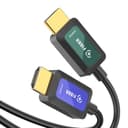
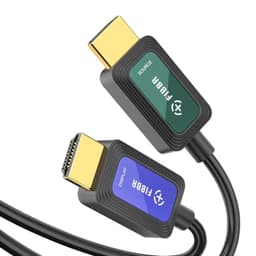
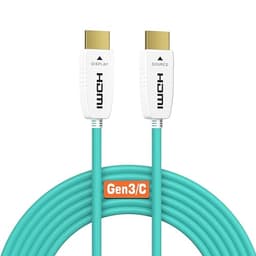
Fiber optic HDMI is the fix. It carries the signal as light rather than electrically, which holds up over runs that copper cannot - fiber HDMI is available in lengths that comfortably cross a living room while still carrying 4K at high refresh rates. It costs more than copper and there is one trap: fiber HDMI is directional. One end is marked for the source and the other for the display, and plugging it in the wrong way round produces no picture at all, which looks exactly like a dead cable. Check the labels before you decide it is faulty.
This route suits you if the PC and the TV are in the same room or adjacent rooms, and if you can physically run a cable along a wall or under a floor without it becoming a hazard.
Route two: stream the game over your network
The PC stays where it is and sends the picture over your home network to something cheap attached to the TV. Valve's Steam Link app does this and it is free - there is no charge for Remote Play and no subscription - and it runs on a long list of devices including phones, tablets, TV boxes and computers, so quite often the hardware is already in the room.
The trade is that streaming is only as good as your network. A wired connection between the PC and the router is worth more than anything else you can do here; Valve's own guidance for its most demanding streaming case asks for a 5GHz Wi-Fi 5 router and a wired link from the PC. Over a solid connection this is genuinely good. Over congested Wi-Fi it is a stuttering mess, and no amount of settings fiddling fixes a bad link.
This route suits you if the PC is in a different room, if running a cable is not practical, or if you want to try the whole idea before spending anything - which is a real advantage, because it costs nothing to test.
The part both routes need: controllers
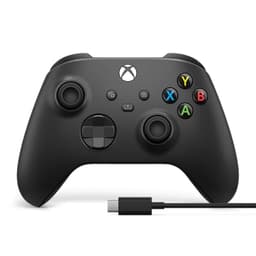
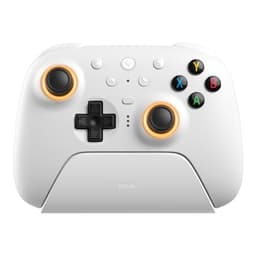
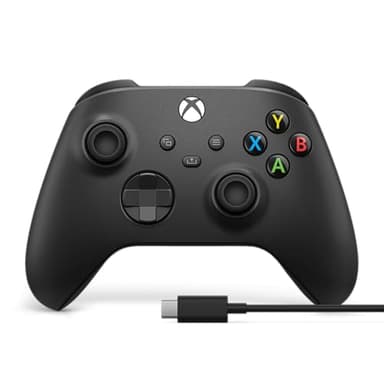
Keyboard and mouse on a sofa is miserable, so a couch setup is a controller setup. That has a knock-on effect worth planning for: the games that work best on a TV are the ones designed for pads, and if the point of the exercise is several people in the room, you need a pad each. Steam Link supports Xbox controllers, DualShock 4 and DualSense, the Switch Pro Controller and many generic Bluetooth or USB gamepads, so whatever you already own is likely to work.
Our second controller guide covers which pad to buy for which machine. And there is one point specific to this setup: over a long distance, a wireless pad needs to reach back to the PC, not just to the TV. If the PC is across the room or in another room, budget for a USB extension so the wireless receiver can sit near the sofa.