Press Start Co

Can You Use Two Different Monitors Together?

Yes for a normal desktop. No for spanning a game. Here is the difference.

By Stephen V., Founder & Editor · Last updated September 6, 2026 · How we pick

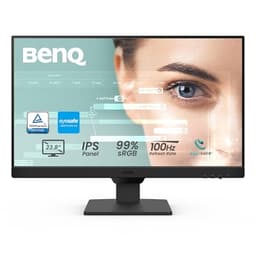
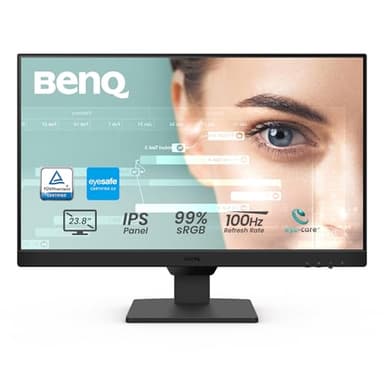
BenQ GW2490 product photo

If you decide to match

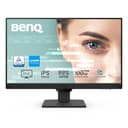
BenQ GW2490

A well-connected 24 inch IPS panel is the safe partner for most existing setups - DisplayPort and HDMI, so it fits whatever output is free.

$99.99 · View on Amazon
#ad · Price as of September 14, 2026 · Disclosure

If you decide to buy a matching panel

You do not need to match for a normal desktop. These are for the cases below where matching genuinely helps. Prices are live from Amazon.

#ItemBest forBracketPrice
1
BenQ GW2490 product photo
BenQ GW2490
Monitor
The default second monitor: IPS, both video inputs, and speakers you can use for chat.Mid-range$99.99
2
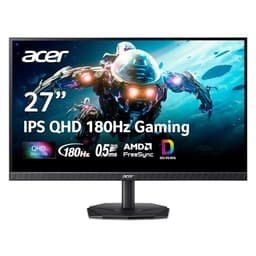
Acer Nitro KG271U N3bmiipx product photo
Acer Nitro KG271U N3bmiipx
Monitor
Buying two identical screens, or upgrading the main one and demoting the old panel.Mid-range$149.99
3
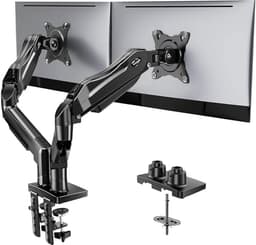
HUANUO FlowLift Dual Monitor Stand product photo
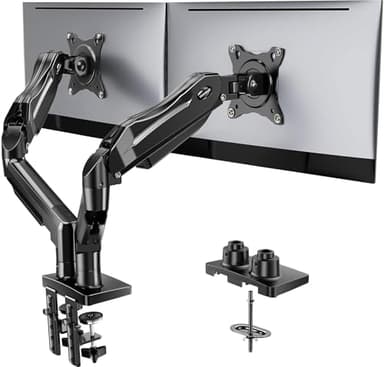
HUANUO FlowLift Dual Monitor Stand
Monitor arm
The best all-round dual arm: gas spring, big size range, both mounting options.Mid-range$59.99

Yes for a normal desktop. No for spanning a game across both.

This is the question almost everybody asks after buying their first monitor, and the answer splits cleanly in two. Once you know which half you are in, the rest is detail.

For an extended desktop - game on one screen, Discord or a guide on the other - mismatched monitors are completely fine. Windows handles displays of different sizes, resolutions and refresh rates side by side as a matter of course. Each screen keeps its own resolution and its own refresh rate. This is what the overwhelming majority of people mean when they ask, and there is no reason to spend money matching panels for it.

For spanning one game across both screens, they need to match. That is a specific mode - NVIDIA Surround or AMD Eyefinity - which combines several physical displays into one logical display. A group like that wants the same resolution and refresh rate throughout, and an Eyefinity group falls back to the lowest common resolution across its displays. Put a 1440p panel next to a 1080p one and you are running both at 1080p, which wastes the better screen.

What actually goes wrong with mismatched screens

Nothing breaks, but four things are mildly annoying and it is better to know before than after.

Windows jump size when you drag them across. If the two screens run different resolutions or scaling settings, a window dragged from one to the other resizes as it crosses. You get used to it in about a day, but it is the most noticeable difference day to day.

The mouse snags at the edge. When two screens are different heights or resolutions, the pixel rows do not line up, so the cursor can catch on the boundary where one screen ends and the other has not started. Windows lets you drag the display positions to align them however you like, which mostly solves it.

The panels will not look the same. Different brands, ages and panel types have visibly different color and brightness. Side by side, white on one screen looks slightly blue or yellow next to the other. This bothers some people enormously and others not at all, and no amount of adjustment fully removes it.

Different heights are the real ergonomic issue. Two screens of different sizes on their own stands put their centers at different heights, so you are constantly re-aiming your eyes. This is the one worth actually fixing, and the fix is a monitor arm rather than a new monitor - see what to check before buying one.

Does a mismatched refresh rate slow the faster screen down?

The concern people arrive with is that pairing a 60Hz screen with a 144Hz one drags the fast one down to 60Hz. On a modern setup running an ordinary extended desktop, each display runs at its own refresh rate and the fast one stays fast. If you do see your main screen sitting at the wrong rate, that is a settings problem, not a law of physics - check the refresh rate for that specific display in the Windows display settings and in your graphics driver's control panel, since both keep their own setting per monitor.

The case where the slower panel genuinely does hold the other back is the spanning one again: inside a Surround or Eyefinity group the displays are being driven as a single unit, and the group is limited by its weakest member.
Before you buy

Do not buy a second monitor to match a screen you are about to replace. It is a common sequence: someone matches their three-year-old 1080p panel, then upgrades the main display six months later and is left with two mismatched screens anyway plus one they did not need. If a main-monitor upgrade is anywhere in your plans, do that first and demote the old panel to second-screen duty - that is the cheapest dual setup there is, and mismatched is fine for it.

The picks, in depth

1
BenQ GW2490 product photo

BenQ GW2490

MonitorBenQMid-range

Best for: The default second monitor: IPS, both video inputs, and speakers you can use for chat.

24 inch, 1920x1080, 100Hz, IPS, DisplayPort and HDMI, built-in speakers, VESA mount

The one to buy if you only want to think about this once. It is IPS so it holds color off-axis, it has DisplayPort as well as HDMI so it will connect to whatever port is free, and the built-in speakers are genuinely useful on a second screen - you can push Discord audio to them and leave your headset carrying game sound.

The catch: Built-in monitor speakers are always mediocre, and 100Hz on a 1080p IPS panel is a productivity specification rather than a gaming one. If the second screen is meant to be a real gaming display, this is not the right purchase.

Specification and availability taken from the retailer's product listing, checked September 6, 2026. Price is live and stamped under the button.

$99.99 · View on Amazon
#ad · Price as of September 14, 2026 · Disclosure
2
Acer Nitro KG271U N3bmiipx product photo

Acer Nitro KG271U N3bmiipx

MonitorAcerMid-range

Best for: Buying two identical screens, or upgrading the main one and demoting the old panel.

27 inch, 2560x1440 QHD, 180Hz, IPS

This is the pick when the second screen is not a sidekick. 27 inch, 1440p and 180Hz on an IPS panel is a real gaming specification, and buying two of them is the only way to get a matched pair that will work in an NVIDIA Surround or AMD Eyefinity group later. Buying one and moving your current monitor to the side is the cheaper version of the same plan.

The catch: Two of these is a serious outlay, and 1440p at 180Hz asks a lot more of a graphics card than 1080p did. If your GPU is already working hard, the monitor is not the upgrade to make first.

Specification and availability taken from the retailer's product listing, checked September 6, 2026. Price is live and stamped under the button.

$149.99 · View on Amazon
$179.99-17%
#ad · Price as of September 14, 2026 · Disclosure
3
HUANUO FlowLift Dual Monitor Stand product photo

HUANUO FlowLift Dual Monitor Stand

Monitor armHUANUOMid-range

Best for: The best all-round dual arm: gas spring, big size range, both mounting options.

Gas spring, fits 13-32 inch, VESA 75x75 and 100x100, 4.4-19.8 lbs per arm, C-clamp and grommet mounts included

This is the arm to buy if you want one purchase to cover whatever monitors you own now and whatever you replace them with. It combines the things the cheaper arms each miss: gas-spring movement, a 13-32 inch range, a 19.8 lb per-arm rating, and both a C-clamp and a grommet base in the box so it fits a desk with a back lip or a solid rear edge.

The catch: Still a clamp mount, so it needs a desk edge it can actually grip - check your desk is thick enough and not a thin laminate overhang before ordering. Heavy 32 inch panels near the 19.8 lb limit will sag over months on any arm in this price class.

Specification and availability taken from the retailer's product listing, checked September 6, 2026. Price is live and stamped under the button.

$59.99 · View on Amazon
$69.99-14%
#ad · Price as of September 14, 2026 · Disclosure

When matching is genuinely worth the money

Three cases, and only three.

You want to span games across both screens. Racing and flight simulators support the very wide aspect ratio a Surround or Eyefinity group produces, and if that is your genre it is a real reason to buy matching panels. Be aware that with exactly two monitors the bezel join lands in the middle of your view, which is why people who do this seriously use three.

Color consistency matters to your work. If you edit photos or video alongside gaming, two panels that disagree about color is a working problem rather than an aesthetic one.

It bothers you. A legitimate reason. If mismatched brightness and slightly different whites will irritate you every evening, matching panels is money spent on not being irritated, and that is a real thing to buy.

Outside those, matching is a preference and not a requirement. The money is better spent on the primary display - or, if your group plays in the same room, on a second controller, which changes more about how you play than any monitor decision on this page.

Practical setup notes for a mixed pair

Set the arrangement to match reality. In Windows display settings, drag the two screen rectangles so their relative positions and heights match how they physically sit on your desk. This is what fixes most cursor-snagging complaints and it takes about thirty seconds.

Set scaling per display. A smaller high-resolution screen next to a larger low-resolution one needs different scaling to make text the same physical size on both. Windows sets this per monitor.

Make the better screen your primary. Games and full-screen applications default to the primary display, so it should be the faster, better panel - not whichever one Windows happened to pick.

Check the cable and the port. A screen running below its rated resolution or refresh rate is very often plugged into the wrong output or using a cable that cannot carry the signal. That is worth ruling out before concluding the mismatch is the problem. Our dual monitor gaming guide covers what to check on the back of the card.

Frequently asked questions

Can you use two monitors with different resolutions?+

Yes. For an ordinary extended desktop each display keeps its own resolution, and Windows handles the difference. The main day-to-day effect is that windows resize when you drag them between screens. Matching resolutions only becomes a requirement if you want to span a single game across both displays.

Can you use two monitors with different refresh rates?+

Yes. On a normal extended desktop each monitor runs at its own refresh rate, so a 144Hz main screen stays at 144Hz next to a 60Hz secondary one. If yours is not, check the per-display refresh rate setting in Windows and in your graphics driver control panel - both store it per monitor.

Do dual monitors have to be the same size?+

No. Different sizes work fine side by side. The practical issue is height: two different-sized screens on their own stands put their centers at different heights, so you keep re-aiming your eyes. A monitor arm fixes that more cheaply than buying a matching panel.

Will a second monitor slow down my main one?+

Not its refresh rate. Each display runs independently on an extended desktop. Driving a second screen does give the graphics card a small amount of extra work, which can cost a little performance if something demanding is playing on it, but it does not cap your main monitor.

When do two monitors actually need to match?+

Only when combining them into one logical display to span a game across both, through NVIDIA Surround or AMD Eyefinity. Those groups want the same resolution and refresh rate throughout, and an Eyefinity group falls back to the lowest common resolution across its displays.