Count the video ports on your graphics card. That is the whole job
Connecting a second monitor is a cable problem, not a software problem. Windows has handled two screens automatically for years - plug the second one in and it appears. What stops people is physical: the graphics card has the ports it has, the monitor has the ports it has, and the cable in the box is usually the wrong one. So before you buy anything, walk round to the back of the machine and count.
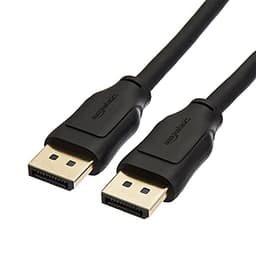
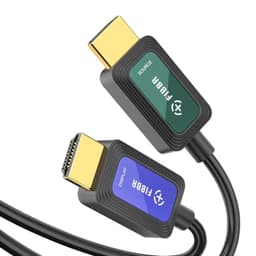
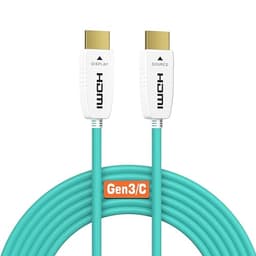
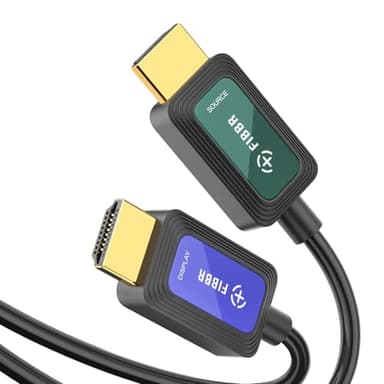
For the overwhelming majority of builds the answer is a DisplayPort 1.4 cable, because almost every desktop graphics card has more DisplayPort outputs than HDMI ones and the monitor's HDMI port is usually already taken by something else. That is the top pick below. If your second screen has to sit a long way from the machine - a television across a living room - a fiber optic HDMI cable is the version of this that survives the distance.
Step one: look at the back of the PC, not the side
Use the graphics card's ports, not the motherboard's. On a desktop with a dedicated graphics card, the card's outputs sit in a horizontal cluster lower down the back panel, separate from the motherboard's ports up top. Plugging a monitor into the motherboard when a graphics card is installed is the classic mistake - at best it works badly, at worst the port is disabled entirely in the BIOS.
Identify what you have. DisplayPort is the one with a notched corner. HDMI is the familiar flat trapezoid. DVI is the older white connector with screws either side, and VGA is the blue one with screws - both still appear on budget monitors and older cards. USB-C carrying DisplayPort Alt-mode is common on laptops and increasingly on cards.
Count the free ones. Two free ports means you need one cable and nothing else. One free port means you need a different approach, which is the next section.
Step two: buy the cable that matches the pair of ports
Card has a spare DisplayPort, monitor has DisplayPort. Buy a DisplayPort 1.4 cable. This is the common case and the cheapest fix - the Amazon Basics cable below quotes 32.4Gbps, 8K at 60Hz and 4K at 120Hz on its listing, which is more headroom than any two-screen desk setup will use.
Card has a spare HDMI, monitor has HDMI. Buy an HDMI cable, and buy a short one unless you need otherwise. Length is where HDMI gets expensive and unreliable.
The second screen is across a room. Past roughly 15 feet, a standard copper HDMI cable starts dropping high-bandwidth signals in ways that look like a broken monitor - flickering, black screens on wake, a resolution that refuses to stick. A fiber optic HDMI 2.1 cable fixes that and both options below are built for the 25-foot run. This is the setup our couch gaming PC guide is built around.
Ports do not match. An active adapter or an adapter cable is the answer here - DisplayPort to HDMI being the most common direction - and the thing to know is that cheap passive adapters are the single biggest source of two-monitor misery. If you are buying an adapter, buy one that states the resolution and refresh rate it supports, and expect to pay more than a cable costs.
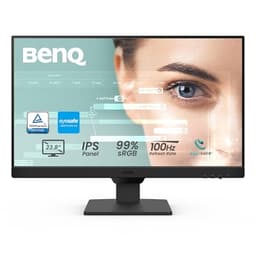
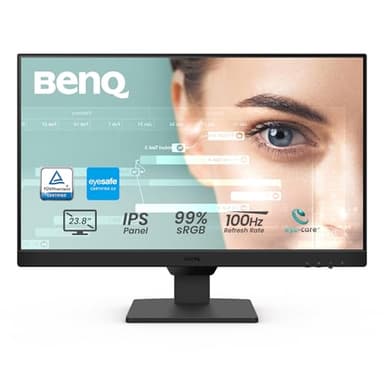
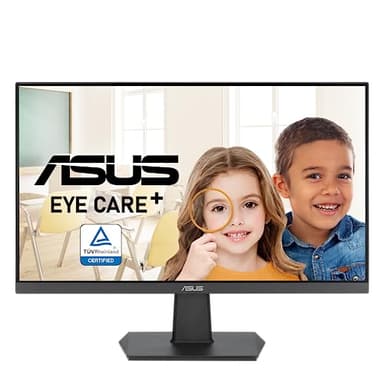
Only one free port on the card. You have three options and none is free: a monitor with both inputs so you can pick whichever port is available, a DisplayPort MST hub, or a USB-C dock if the machine is a laptop. The BenQ GW2490 below is on this page for exactly that reason - it takes DisplayPort and HDMI, so it fits whichever port you have left.
Step three: the thirty seconds of software
Right-click the desktop, open Display settings, and the second screen will be there. Three things to do while you are in it:
Drag the boxes to match reality. If the layout diagram does not match where the screens physically sit, your mouse will leave the wrong edge forever. Set the vertical alignment too, not just left and right.
Set the refresh rate manually. Windows frequently defaults a capable screen to 60Hz. Advanced display settings, pick the screen, choose its real refresh rate.
Check the scaling.Two screens of different pixel density need different scaling percentages, and this is the cause of the "everything is tiny on one screen" complaint. Our mismatched monitors guide is the whole version of that problem.